
Screenshots and recordings
Screenshots and recordings
Capture what went wrong once, with the technical context attached, so nobody has to reproduce it from a description.

Screenshots
| Mode | Use it for |
|---|---|
| Visible area | What is on screen right now. |
| Region | One component or one broken corner of the page. |
| Full page | The whole page, scrolled and stitched into one image. |
Add a short delay before the capture when you need a menu, tooltip or hover state open. Every screenshot opens in the annotation editor: pen, arrows, lines, rectangles, circles, text, and blur for anything private, before you download or share it.
Recordings
- Choose what to record
Record the current tab, or your whole desktop when the bug crosses windows.
- Choose what to attach
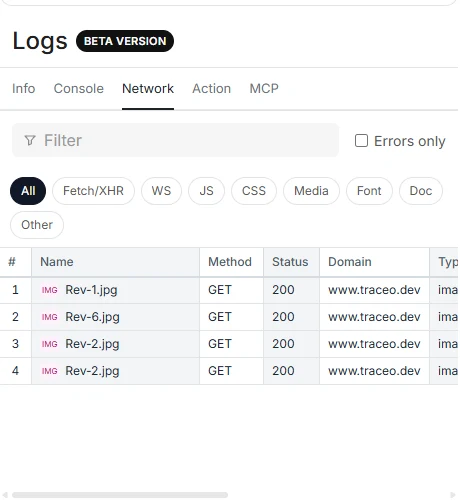
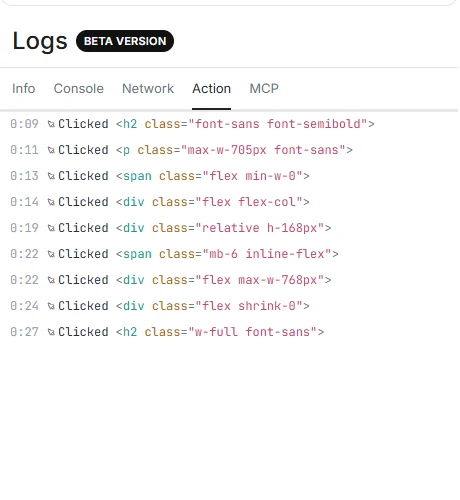
Turn on console logs, network requests and device details before you start. They are only captured when you switch them on.
- Reproduce the bug
Talk through it with your microphone, draw on the page to point at the problem, and blur private areas while you record.
- Review and share
Stop the recording to open the viewer. Check the video and logs, then download it or create a share link.
What gets attached
Plans and limits
Free plans include a monthly number of screenshots and recordings. Pro removes the limits. Your current usage is shown in the extension and on your portal dashboard.