Bug Reporting
Turn Screen Recordings into Clear Bug Reports
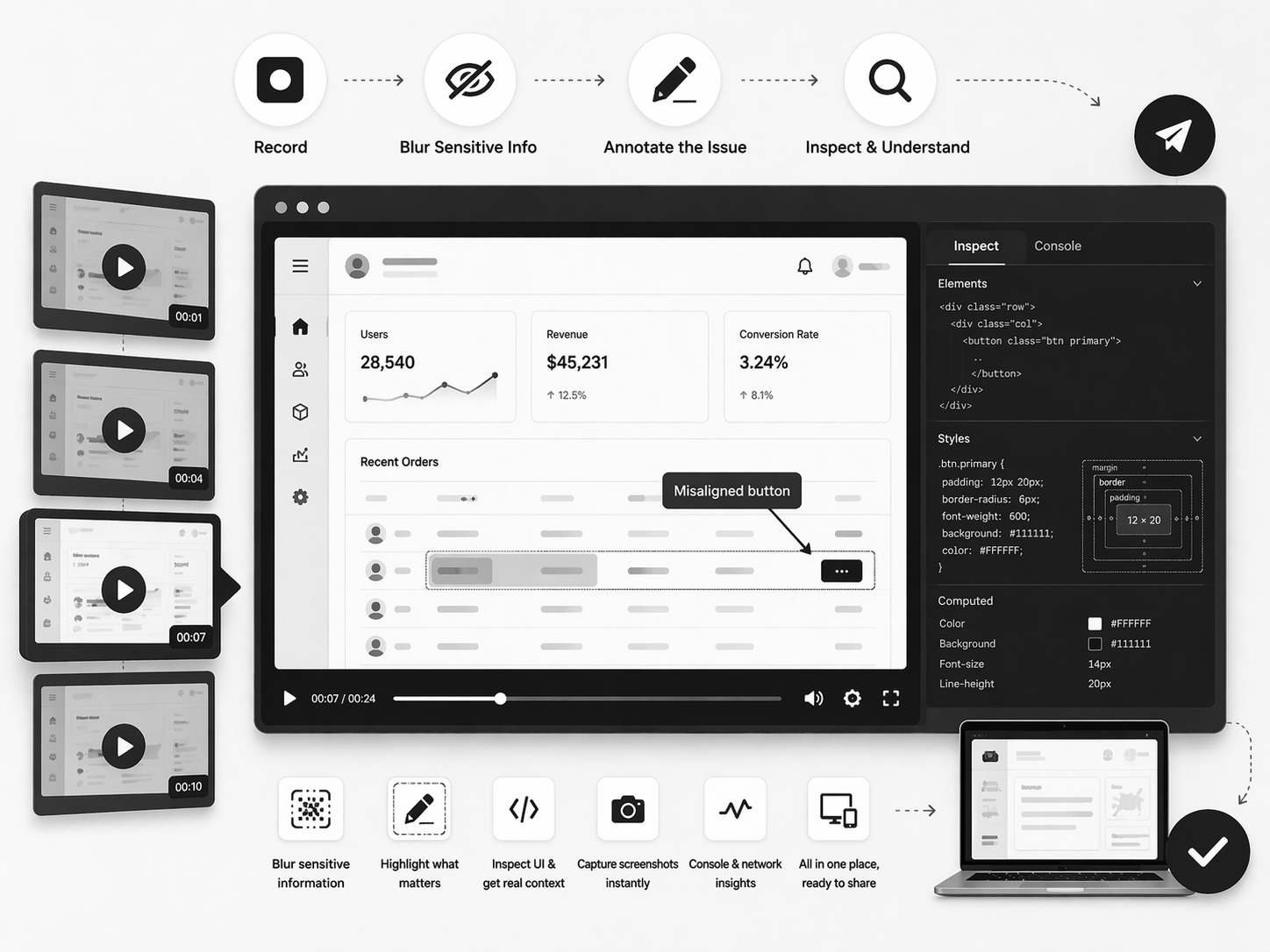
A screen recording is useful, but it is not always enough. Sometimes a bug needs more than playback. It needs context, clarity, and the ability to hide sensitive information before sharing it.
Traceo is designed to help teams capture bugs in a smarter way. Instead of recording first and fixing details later, teams can blur private data, annotate the issue, and inspect the UI while recording remains part of the same workflow.
Why screen recordings need more than playback
A plain recording can show what happened, but it may still leave important questions unanswered. Was a personal detail exposed on screen? Was the broken button inside a specific layout state? Did the issue happen because of something visible in the UI, or because of something hidden behind it?
In real bug reports, these details matter. Teams need a way to explain the problem clearly without exposing unnecessary information. They also need a way to point directly at the issue so it is easy to understand at a glance.
Blur sensitive information
Not every part of a screen recording should be visible to everyone. Some recordings may include private data, internal details, or temporary information that should not be shared as-is.
With Traceo, teams can blur those parts before sharing. That makes it easier to protect sensitive content while keeping the rest of the bug report useful.
This is especially helpful when recordings move across QA, design, product, and development. A blurred recording keeps focus on the bug, not the private data around it.
Annotate the issue clearly
A bug report becomes stronger when the problem is obvious. Sometimes a screen recording shows the issue, but the viewer still has to guess what to look at. Annotation removes that guesswork.
Teams can mark the exact part of the screen that matters: a visual problem, a broken element, or a layout issue. This makes reports easier to scan and easier to act on.
Annotation is especially useful for subtle issues like spacing drift, alignment shifts, or small visual inconsistencies that are easy to miss.
Inspect while recording
One of the most useful parts of Traceo is that inspection is not separated from recording. Teams do not need to treat screen capture and UI understanding as two disconnected steps.
When a bug appears, they can inspect the interface and understand what is happening while still staying close to the recording-first workflow. That connects what the user saw with what the UI was doing at the time.
For visual bugs, responsive issues, and typography and spacing signals that are hard to describe in words, this makes reports much easier to understand.
Why this workflow matters
When blur, annotate, and inspect are part of the same experience, bug reporting becomes faster and more practical. QA teams can capture issues without extra cleanup later. Designers can see exactly what is wrong. Developers get clearer reports with less back-and-forth.
Instead of sending a rough clip and following up with details later, teams deliver a more complete report from the start. The result is less confusion and a quicker path to a fix.
A better way to record bugs
Traceo is more than a screen recorder. It is a workflow for better bug reports. It helps teams capture the issue, protect sensitive content, point out the problem, and understand the UI in one place.
For teams that want cleaner recordings and more useful reports, this approach turns screen recording into something more valuable: a clear, actionable way to communicate bugs.